Manuals
Reset your password
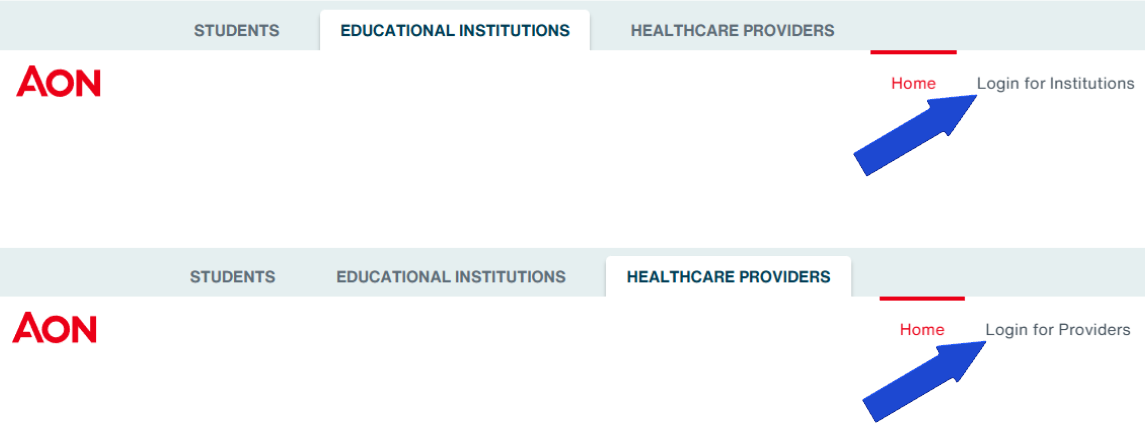
1. Go to the login page
- Open Aon Student Insurance and click the Login button
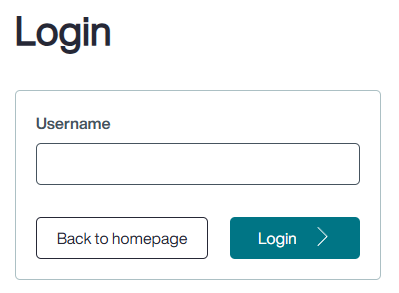
2. Enter your email address
- Type in your email address and click Login
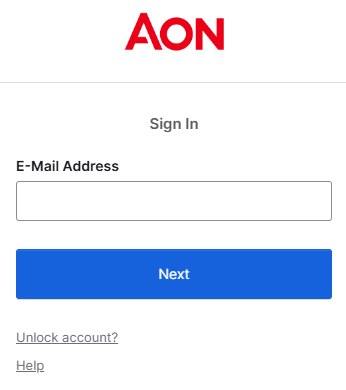
3. Check your email address
- Type in your email address if it's not pre-filled and click Next
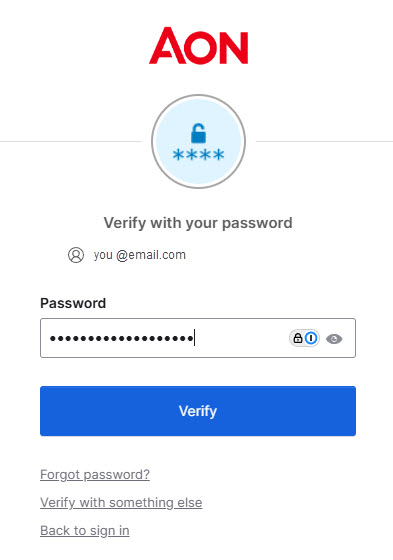
4. Select 'Forgot Password?'
- On the password entry screen, click 'Forgot Password?' option below the 'Verify' button
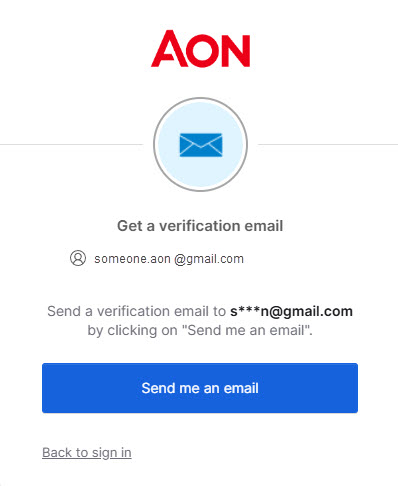
5. Request a Password Reset link
- Click 'Send me an email' to receive a password reset link in your inbox
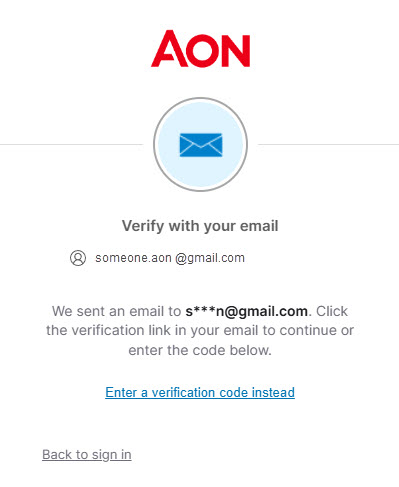
- A confirmation message will appear, notifying you that an email has been sent. You will also see an option to enter a verification code
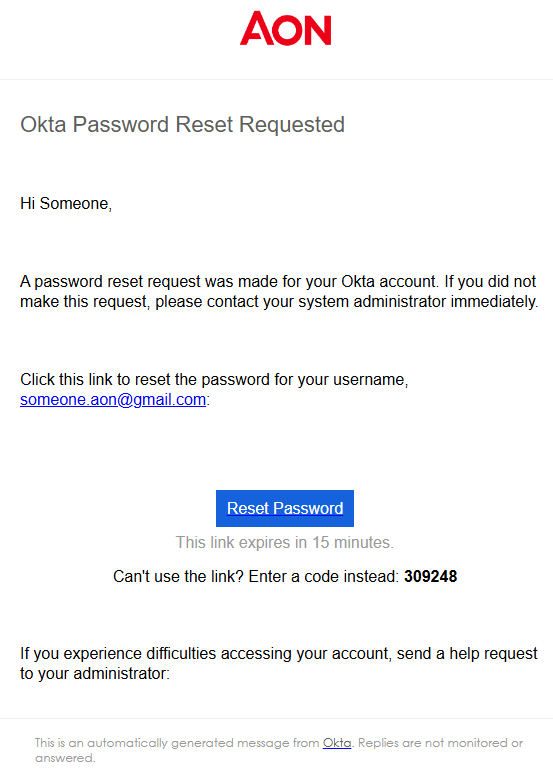
6. Check your email
- The email will contain a 'Reset Password' button and a six-digit verification code
- You can either click the 'Reset Password' button or select 'Enter a verification code instead' on the previous screen
7. Reset your password
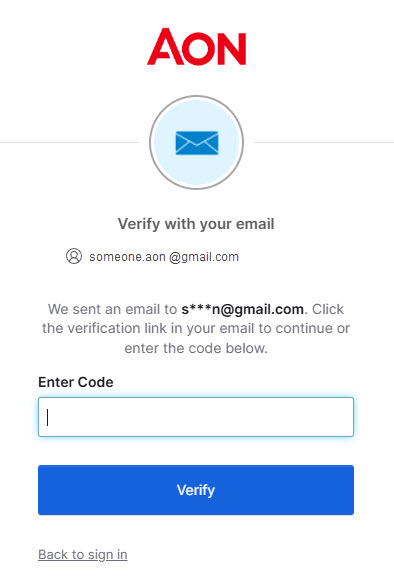
- If you choose to enter the verification code, type it in and click 'Verify'
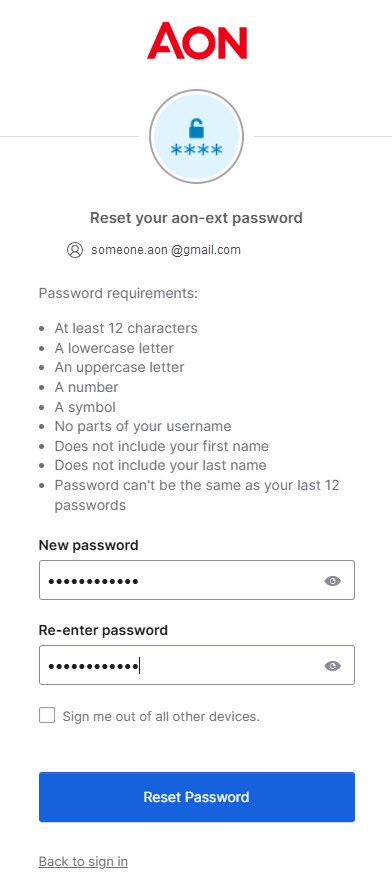
- Both options will take you to the password reset page
- Enter a new password, confirm it, and click 'Reset Password'
8. Log In
- You will now be automatically logged into Aon Student Insurance
- If not, go to Aon Student Insurance and click the Login button